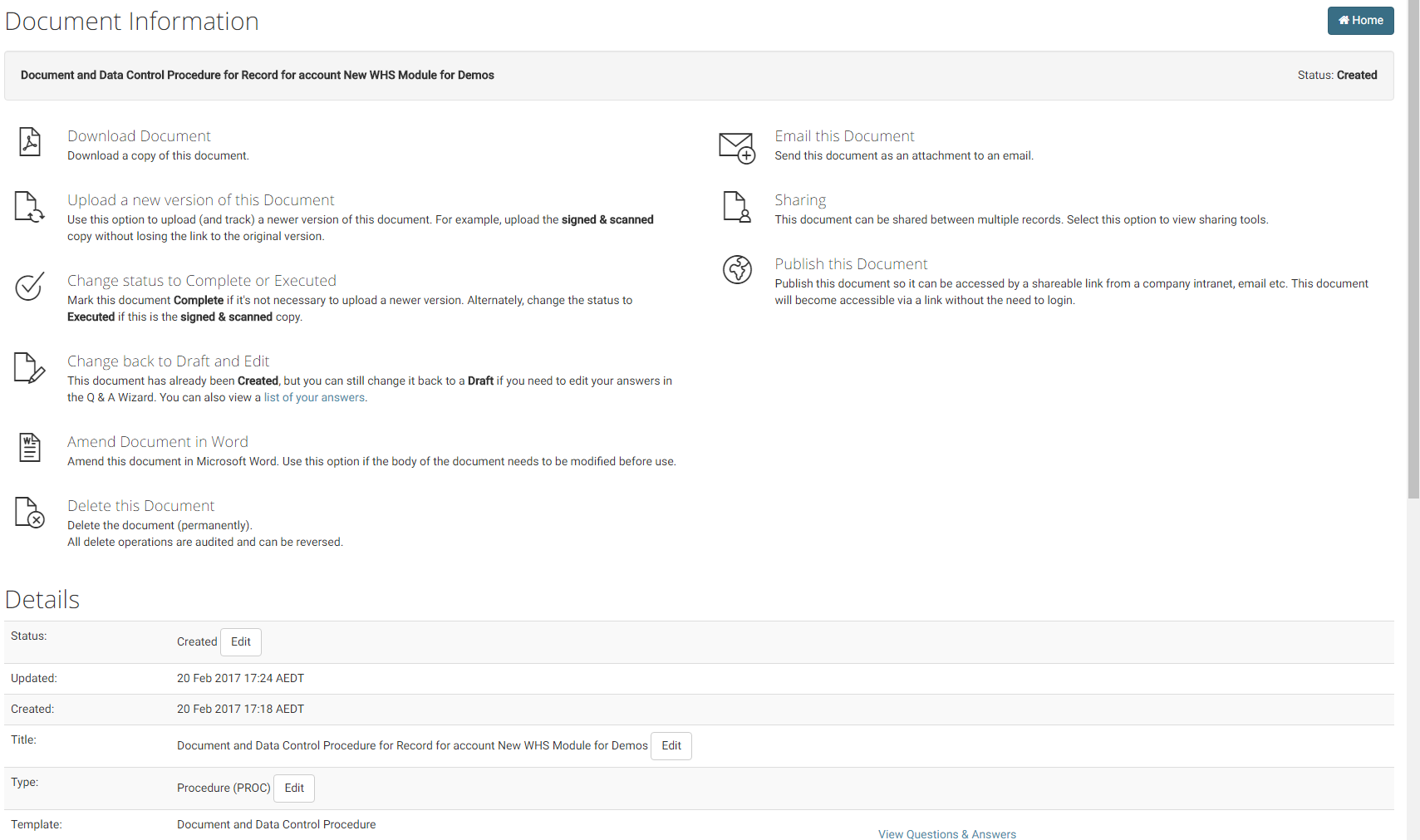
The Workplace, Health and Safety policies, procedures, guidelines, plans and templates can be generated from enableHR.
There are a number of ways that you can create WHS documentation from within enableHR. It will depend on your circumstances and your experience with WHS as to which is the most appropriate option.
Documents can be created in the process of completing checklists, such as a 'Setting up Workplace Health and Safety Polices and Procedures' or 'Emergency Management Plan' checklist for example, or can be created directly from within the 'Our WHS Documents' tabs by selecting the 'Create a New Document' button. Documents can also be generated against Register items under the item's 'Documents' tab by selecting the 'Create a New Document' button.
Whichever path you follow in enableHR to create your documents, creating the actual document will follow the same process. Documents are created and tailored to unique business needs through the process of the user answering a range of questions during the document generation process.
For a list of the available WHS documentation, please refer to the List of WHS Documentation Types article. For an overview of how to control and manage generated documentation, please refer to the Document Control and Management article.
If you are needing to update or replace a document, please read: Documents: Replace or create a new version of a document from a template.
Overview of how to create documents
Please find a summary below of how to generate documentation from a checklist. Please also review the following article in order to understand how to undertake the management of WHS document which requires accurate tracking of document versions: WHS Document Control and Management.
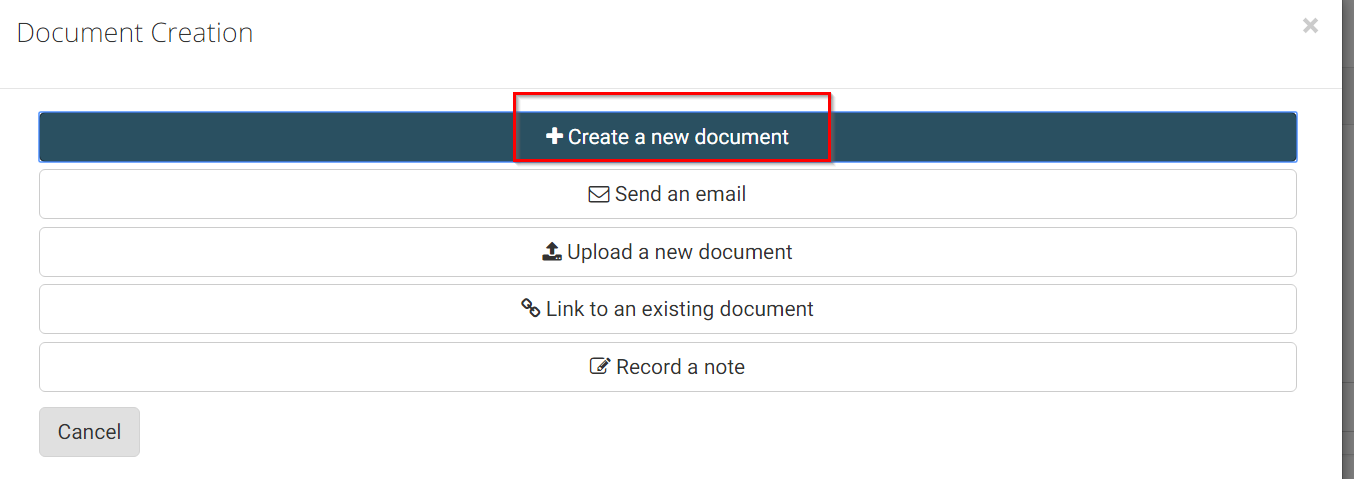
1. Select the 'Create' button on the checklist step and then select 'Create a New Document'.
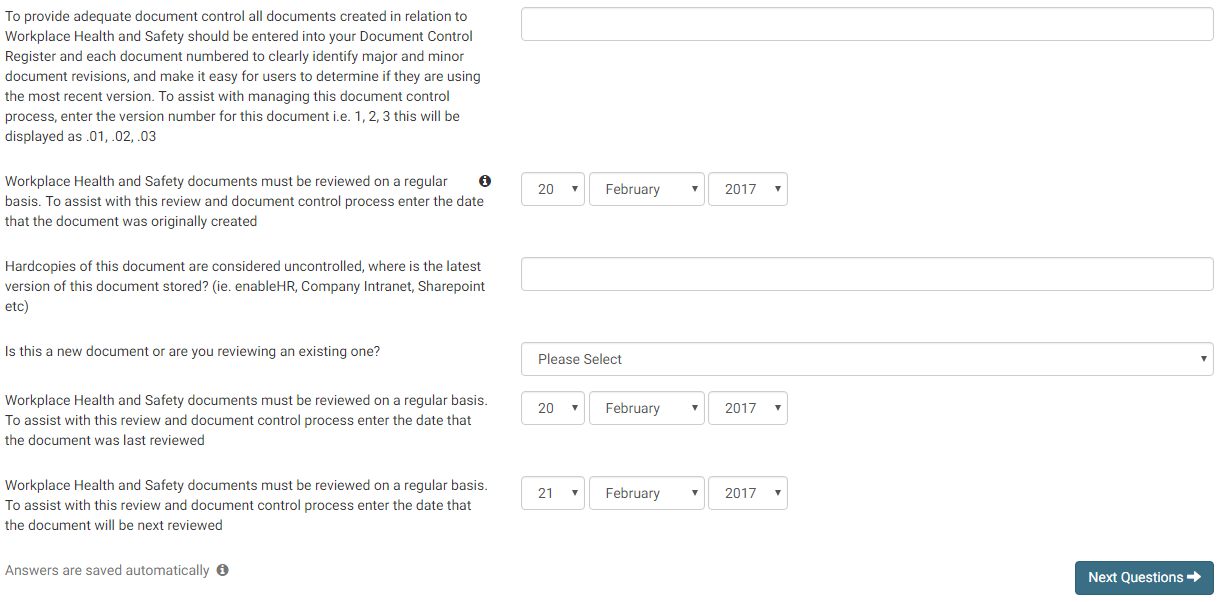
2. Tailor the business' documentation through the process of answering the questions provided.
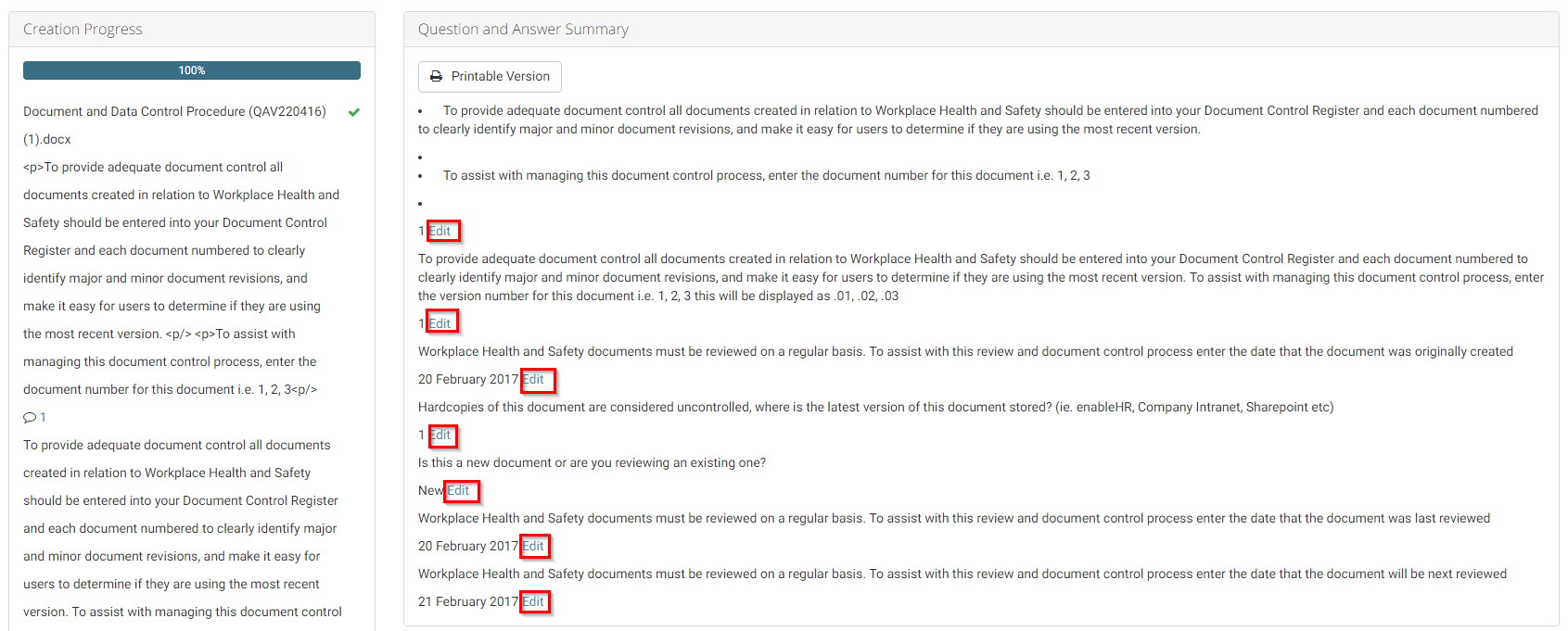
3. In the 'Question and Summary' section, preview the answers you have provided throughout the generation phase. If required, you can edit any section of the creation process by selecting the 'Edit' option. Then select 'Next'.
4. Select from the options provided to do further action:
- Click on 'Preview' to preview the document;
- Click 'Create' if you want to generate the document into Word or PDF; or
- Select 'Next' if you want to bring up more options to either modify or finalise the document.

5. If 'Next' is selected from the previous steps, you will be taken back to the checklist.
6. Select the relevant Document Information option from the previous step to:

- Download the document;
- Upload a new version;
- Change the status;
- Change to draft status and edit;
- Amend the document in Word;
- Delete the document;
- Email the document;
- Share the document which will create a link between this document and another record. For example linking a procedure to a Risk Register item;
- Publish the document to allow the document to be publicly accessible without requiring login to enableHR;
- Change the name of the document;
- Assign the document to be viewable only in specified branches;
- Set an expiry date;
- Change the Document Type to control whether the document can be viewed in eSS and support how you choose to report on documents across enableHR.